
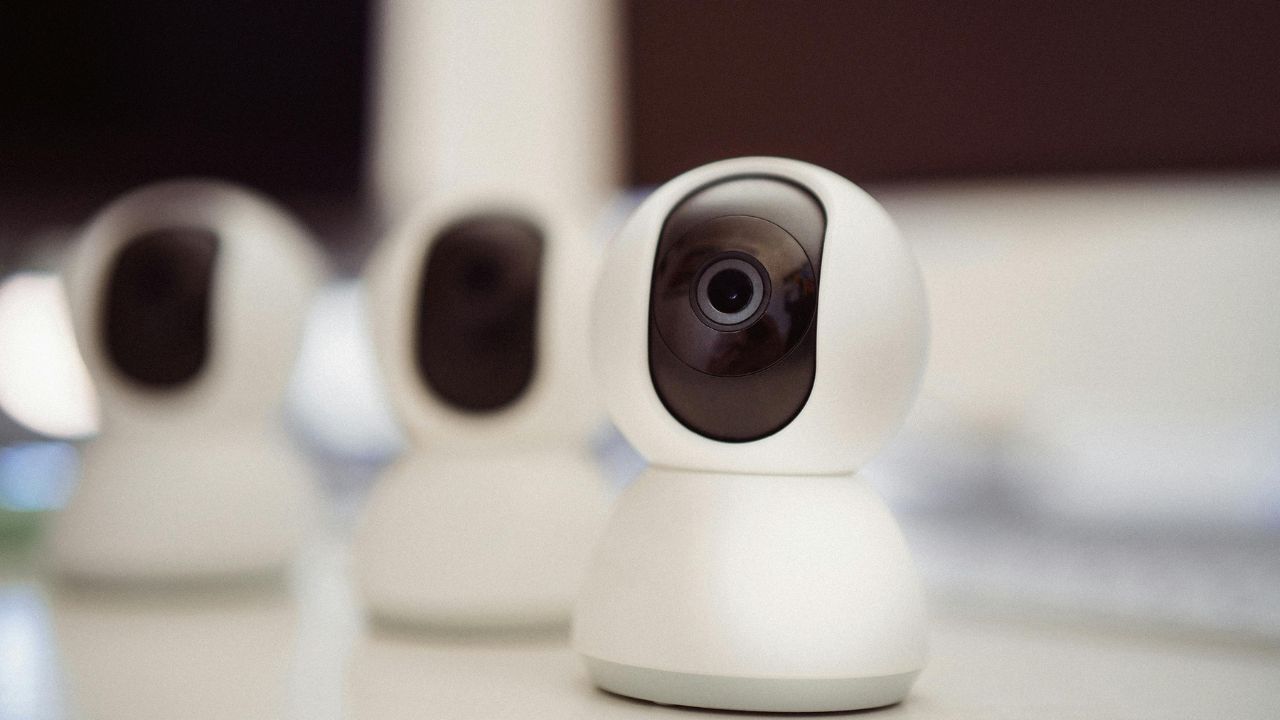
In 2026, a good video camera is very important. Many people work from home. Millions of users host online meetings every single day. Streamers broadcast live video to audiences across the world. Because of this, you cannot rely on the bad built-in camera on your laptop. A dedicated external webcam is the best way to look sharp, clear, and professional.
Modern external webcams have changed rapidly over the last few years. Today, top cameras offer crisp Ultra HD resolution, higher frame rates, and wide dynamic range. They also use artificial intelligence (AI) to track your face and reduce background noise. Whether you want to buy a budget-friendly 1080p camera for office video calls or a premium 4K streaming camera for Twitch, choosing the right model will change your online presence entirely.
This comprehensive guide breaks down the top webcams available right now. We look at image quality, light correction, autofocus, and price to help you make the right choice.
What to Look For in a 2026 Webcam
When shopping for a new web camera, you must think about your specific needs. Not everyone needs an expensive cinema-grade sensor. However, everyone benefits from a clean and natural picture.
Here are the primary features to check before spending your money:
- Resolution and Frame Rate: High resolution means a sharper picture. Standard high-definition (1080p) is excellent for daily Zoom meetings. High-end creators usually prefer 4K resolution because it captures fine details. Frame rate affects smoothness. A rate of 30 frames per second (fps) is fine for meetings, but 60fps is much better for fast-paced live streaming.
- Sensor Size: A larger sensor catches more light. This helps the camera perform well in typical office lighting or dim rooms. It prevents your skin tone from looking flat or pasty.
- Autofocus and Lenses: You want a camera that stays sharp when you move. Phase-detection autofocus keeps you in focus instantly without any annoying visual hunting.
- Field of View (FOV): A wide field of view is great if you want to show a whiteboard or multiple people. A narrow field of view (around 70 degrees) keeps the focus strictly on you and hides a messy room.
- Connectivity and Mounts: Look for simple plug-and-play USB connections. A sturdy clip mount helps you position the camera securely at eye level on top of your monitor.
Best Webcams for Zoom Meetings
Professionals need reliability above all else. When you are presenting to a client or speaking with your boss, you want natural colors and smooth performance without software hassle.
1. YoloLiv YoloCam S3 (Best Overall for Zoom)
The YoloLiv YoloCam S3 has become a top recommendation for business professionals who rely on video calls. It features a massive 1/1.3-inch sensor that handles mixed office lighting beautifully. Whether you have bright sunlight from a window or harsh overhead LEDs, your skin looks natural. The large aperture also creates a soft, real background blur. This means you do not have to use fake digital backgrounds that chop off your hair.
|
Feature |
Specification |
|
Resolution |
1080p / 4K capable |
|
Sensor Size |
1/1.3-inch |
|
Autofocus |
Phase-Detection |
|
Best For |
Executives and daily professionals |
2. Logitech C920s Pro HD (Best Budget Reliable)
The Logitech C920 series has been a corporate favorite for over a decade because it simply works. The C920s Pro HD provides dependable 1080p video quality. It includes automatic light correction and a built-in privacy shutter. While it does not have the advanced AI features of newer models, its physical build is sturdy, and it connects instantly to any desktop computer without needing extra software.
|
Feature |
Specification |
|
Resolution |
1080p at 30fps |
|
Field of View |
78 Degrees |
|
Privacy Cover |
Yes (Physical Shutter) |
|
Best For |
Occasional video calls and tight budgets |
3. Logitech Brio 300 (Best Entry-Level Professional Upgrade)
If you want a modern, compact look from a trusted brand, the Logitech Brio 300 is an excellent choice. It connects via USB-C and features a 70-degree field of view. This narrow view is perfect for single users because it crops out the background. It also has a noise-reducing microphone to help your voice sound clear in noisy homes.
|
Feature |
Specification |
|
Resolution |
1080p |
|
Connection Type |
USB-C |
|
Microphone |
Mono with noise reduction |
|
Best For |
Hybrid workers and small workspaces |
Best Webcams for Live Streaming
Live streamers need high frame rates, excellent color depth, and advanced customization options. When you broadcast gameplay or live content, your webcam image must look crisp even when scaled down into a small corner overlay.
1. Insta360 Link 2C (Best 4K Streaming Value)
The Insta360 Link 2C brings stunning 4K video quality to content creators at a competitive price point. It offers beautiful color reproduction and handles wide dynamic range with ease. The built-in AI tracking keeps you centered if you move around your room during a broadcast. It also supports simple gesture controls, allowing you to zoom in or out just by holding up your hand.
|
Feature |
Specification |
|
Resolution |
4K at 30fps / 1080p at 60fps |
|
AI Features |
Subject tracking and gesture control |
|
Design |
Slim and lightweight |
|
Best For |
Twitch and YouTube content creators |
2. Razer Kiyo Pro Ultra (Best Premium Video Quality)
For streamers who want the absolute highest quality without moving to a giant DSLR camera setup, the Razer Kiyo Pro Ultra reigns supreme. It holds a massive Sony STARVIS 2 sensor. This sensor acts like a real camera lens, capturing incredible detail even in pitch-black rooms lit only by your computer screen. It outputs uncompressed 1080p at 60fps or sharp 4K video.
|
Feature |
Specification |
|
Resolution |
4K at 30fps / 1080p at 60fps |
|
Sensor Type |
1/1.2-inch Sony STARVIS 2 |
|
Low-Light Quality |
Exceptional / Cinema-grade |
|
Best For |
Serious streamers who want a pro look |
3. HP 960 4K Streaming Webcam (Best Software Features)
The HP 960 is a heavy-duty webcam designed for serious creative work. It delivers highly accurate colors and has a phenomenal internal dual-microphone array. The included desktop software allows you to adjust the field of view, change color warmth, and toggle AI auto-framing. It is a large camera, but it rewards you with highly polished video production.
|
Feature |
Specification |
|
Resolution |
4K UHD |
|
Audio |
Dual beamforming microphones |
|
Customization |
Full control via companion app |
|
Best For |
Product reviewers and creative vloggers |
Setup Tips for Looking Better on Video
Buying a great external webcam is only the first step. To get the cleanest possible image, you need to set up your environment correctly.
- Change Your Camera Angle: Never leave your webcam sitting flat on your desk looking up at your chin. Use the adjustable clip mount to position the camera at eye level on top of your monitor. This looks natural and flattering.
- Fix Your Lighting: Avoid harsh overhead office lights or putting a bright window directly behind you. This causes backlighting, making your face look like a dark shadow. Instead, place a soft light source in front of you, slightly to the left or right side of your computer monitor.
- Sit at the Right Distance: Frame yourself from the upper chest level. If the camera is too close, your face will look distorted. If it is too far away, you will look tiny and detached from the meeting.
Frequently Asked Questions (FAQ)
Is a 4K webcam worth it for daily Zoom meetings?
For most standard business meetings, a good 1080p webcam is more than enough. Most video conferencing apps like Zoom and Microsoft Teams compress the video signal anyway to save internet bandwidth. However, a 4K webcam is highly beneficial if you record your presentations locally, create content for YouTube, or need to crop into your video frame without losing sharpness.
Why does my webcam look grainy in a dark room?
Webcams have tiny image sensors compared to big photography cameras. When a room is dark, the camera has to boost its digital signal to make the picture viewable. This digital boost creates visual noise, which looks like grain or fuzziness. To fix this, use a bigger sensor camera like the Razer Kiyo Pro Ultra, or simply add a small desk light.
Do I need an external microphone if my webcam has one?
Most basic webcams have simple mono microphones that grab a lot of room echo. If you do a lot of professional speaking or live streaming, we recommend buying a dedicated USB microphone or a headset. This ensures your voice sounds deep and clear, matching your improved video quality.
Can I use an external webcam on a laptop computer?
Yes. External webcams use simple plug-and-play USB connections. You just clip the camera onto the top of your laptop lid, plug the cable into an open port, and select the new camera inside your Zoom or streaming software settings.
Final Words
Upgrading your video setup in 2026 is one of the easiest ways to improve your daily digital life. A high-quality external webcam removes the blurry, low-light struggles of old laptop cameras. If you want seamless corporate meetings with beautiful skin tones, look toward options like the YoloLiv YoloCam S3 or the classic Logitech C920s Pro. If your goal is to grow an online audience with beautiful live video, look at advanced systems like the Insta360 Link 2C or the Razer Kiyo Pro Ultra. Pick the model that fits your budget, fix your lighting, and enjoy looking your best on screen every single day.